
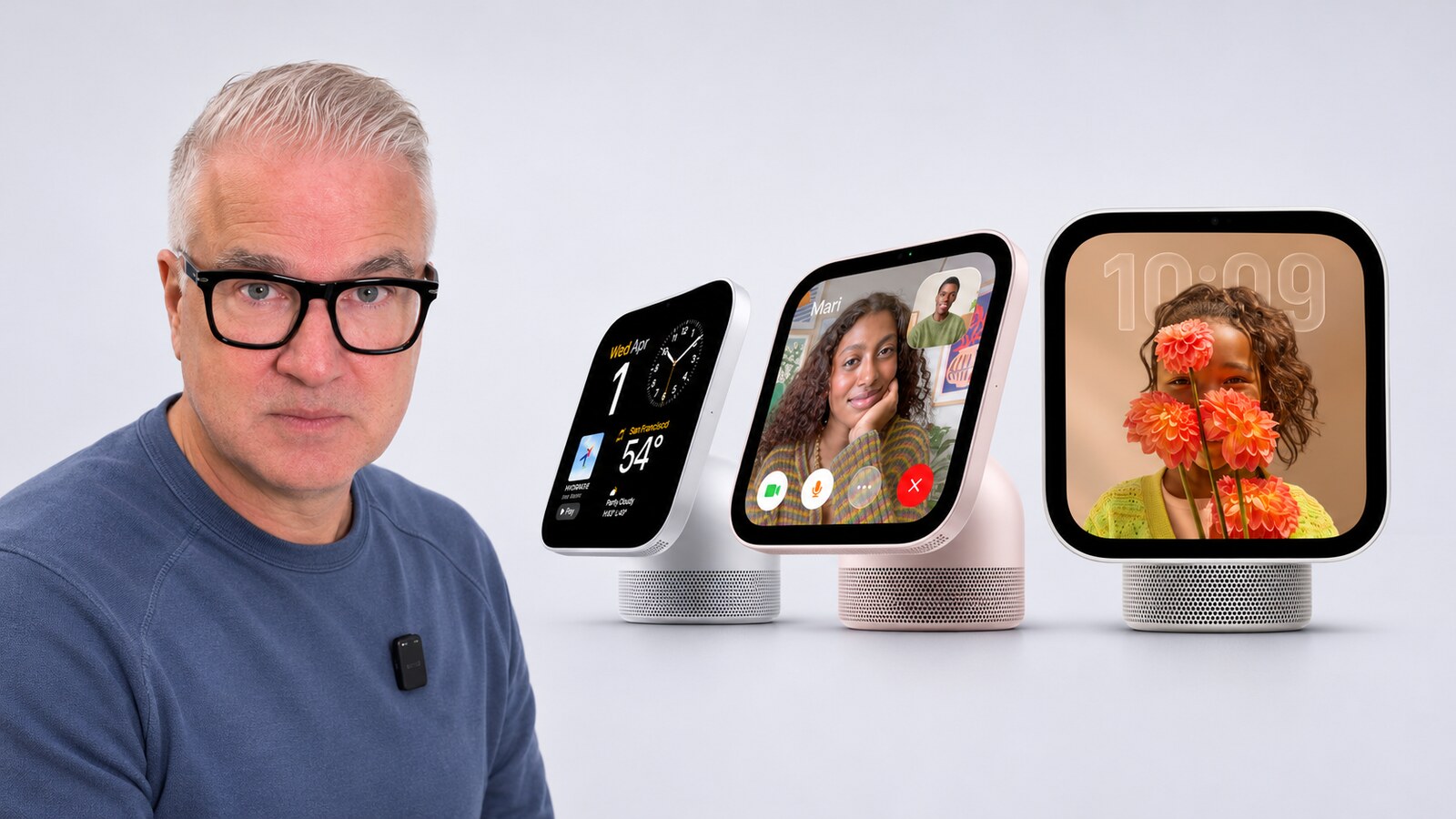
I’ve had a Google Nest display in my kitchen for a while, and I’ve tried Amazon’s Echo displays too. So when I unboxed the Apple HomeView, I had a pretty specific question: what would make me reach for Apple’s $429 CAD ($299 USD) smart display when there’s already a screen on my counter and an iPhone in my pocket?
After setting up the silver tabletop HomeView and trying it with a recipe, I can see the appeal. The hardware feels substantial, the 7-inch screen fits where I want it, and setup felt like adding another Apple device to the home I’d already built in the Home app. The decision comes down to how much you’ll use what Apple brings to that counter: Siri AI, a shared screen that can recognize different people, FaceTime and convenient access to compatible smart-home gear.
As an Amazon Associate I earn from qualifying purchases.
Find Apple HomeView on Amazon U.S. (affiliate link) · Check Apple Canada pricing and models
Unboxing the tabletop HomeView
The first thing that surprised me was how small it looked when I lifted it out of the box. Seven inches sounds like a reasonable size on paper, but in person the square display and rounded base made it look more compact than I’d pictured. That worked in its favour. I wanted it in the kitchen, where every gadget has to compete with a cutting board, a coffee maker and whatever I’m working on that day.
I found the HomeView, a USB-C cable, a power adapter and paperwork in the box. The cable plugs into the back of the base. The rubber underside helps keep the unit from shifting on the counter, and the hinge lets you angle the screen for where you’re standing or sitting. The aluminum base gave the silver model I tried a solid feel. When it powered up I could feel some of the speaker’s vibration through the unit, an early impression I’d want to follow up with a proper listening comparison.
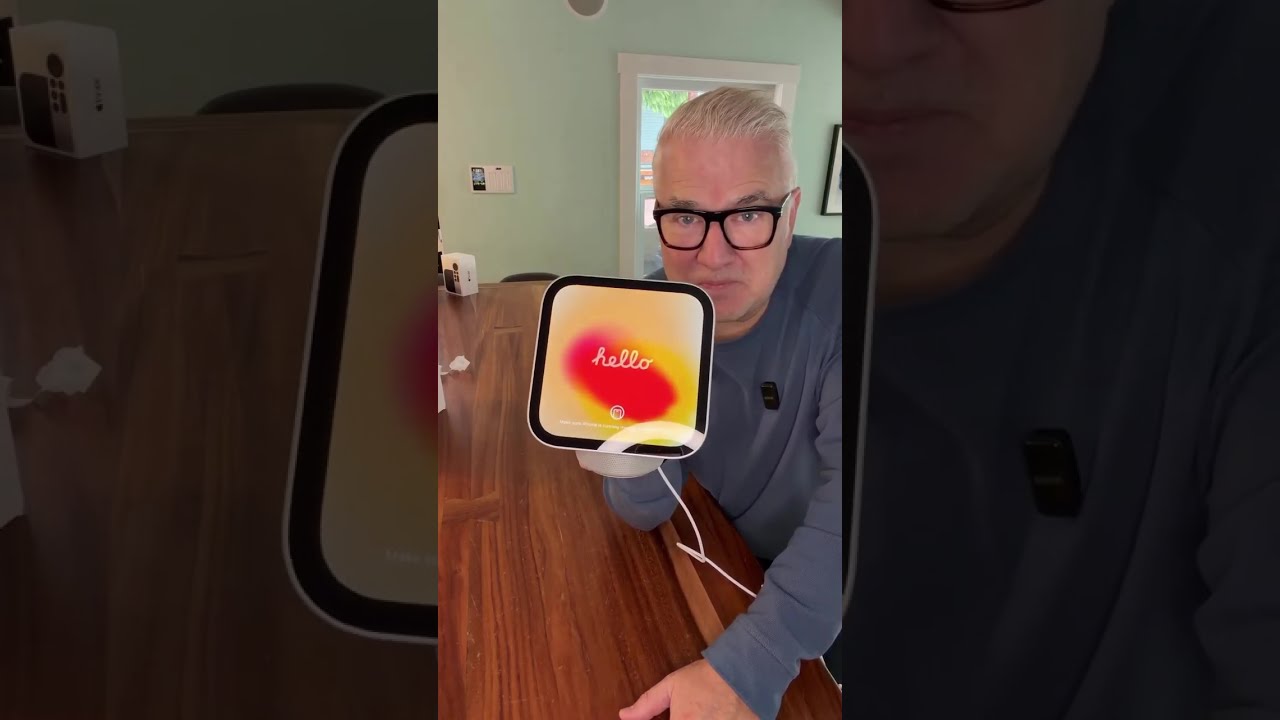
How I set up Apple HomeView with my iPhone
When I brought my iPhone close to the powered-on HomeView, the setup card appeared on the phone. I tapped it, lined up the iPhone camera with the pairing image on HomeView, and the rest of the initial setup moved back to the phone. The pairing itself took only a moment in my demo. Most of the time went into choosing settings and deciding how much personal information I wanted the shared display to use.
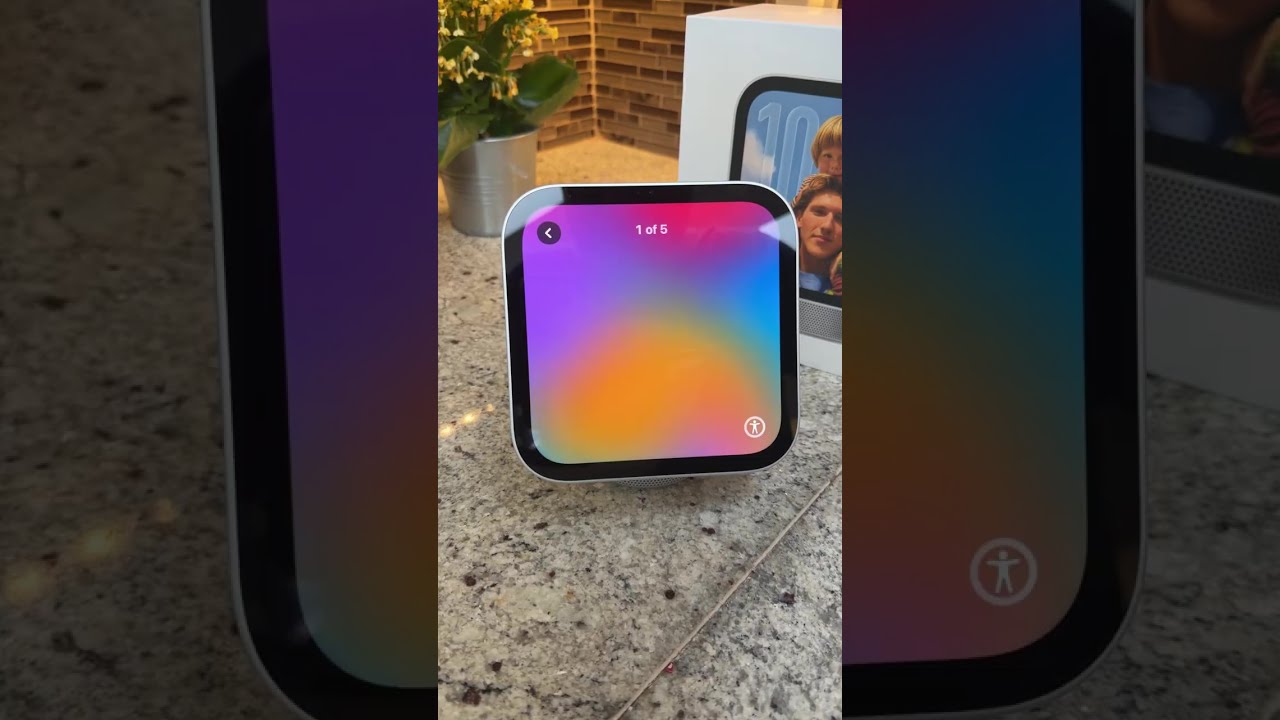
I assigned HomeView to the kitchen in my existing Apple Home, accepted the terms and chose a photo face using featured images from my Apple Photos library. The setup also offered accessibility controls, including text options, and the option to match my iPhone’s Siri settings. I went with the settings I was already using. I also opted in when asked about access to personal content, because asking about appointments and messages was part of what I wanted to try.
After sign-in came voice and face recognition. To train voice recognition, I read sample requests for weather, music, lights and a timer. For face recognition, the display prompted me to turn my head in several directions. It’s a short extra step, and one worth explaining to anyone else in the house who’ll use the display for personal information.
Once I was in, I scrolled through the different faces. There were useful options for things like weather and calendar, plus a photo face that promptly surfaced a picture of me drinking beer. I’ll probably stick with Snoopy. I already have the Snoopy face on my Apple Watch, and there’s something fun about seeing him show up in the kitchen too.
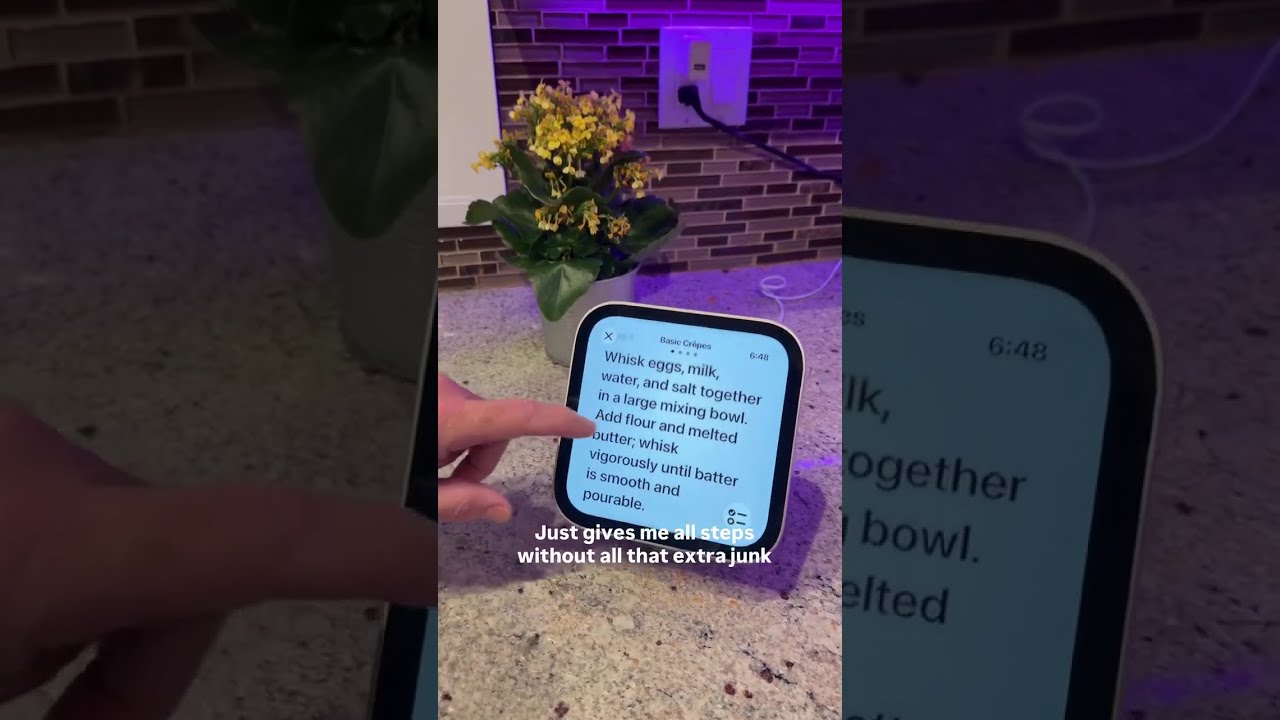
Recipes are the first thing I’d use it for
A recipe is a better test of a kitchen display than a quick weather question. You need the ingredient quantities and the next step close at hand, often while your phone is across the room or your hands are messy. In my recipe Short, you can see the interface change from a recipe image to a written instruction screen on the HomeView. The adjustable screen helps here because I can aim it toward where I’m prepping food.
Apple describes two ways to get started. You can open a supported recipe in Safari and use Start Cooking to bring up a simplified view, or start on your iPhone and continue on HomeView with Handoff. Siri AI can also suggest recipes, and HomeView can run multiple timers. That combination makes sense on a busy counter: keep the instructions visible and ask for a timer when the food goes in. I’d be especially interested in seeing how consistently the cooking view works across the recipe sites I actually use.
What Siri AI can do on a shared screen
Apple says the HomeView can recognize up to six people. Depending on the settings and device you pair, the display can surface your calendar, reminders, messages, FaceTime and Find My information. For more personal Siri AI requests, Apple requires a paired Apple Intelligence-compatible iPhone or iPad with current software and Siri AI enabled. Apple also says personal content appears when HomeView recognizes you by face and the paired device is present and was recently unlocked.
Those requirements matter in a kitchen. People walk past it all day, and the screen faces into a shared room. During setup, I chose to enable personal content because I want to be able to ask about my schedule. Someone who mainly wants timers, music and shared smart-home controls can make a different choice during setup. I’d decide what I want visible before setting up recognition for the rest of the household.
In Canada, Siri AI is available in English at launch, with Canadian French promised in a later software update. Apple describes Siri AI on HomeView as a beta in software version 27.2 and says certain server-backed Apple Intelligence features have daily usage limits. For a household buying primarily for Siri AI, the language support and those limits are worth checking before ordering.
A smart-home dashboard you can leave in one place
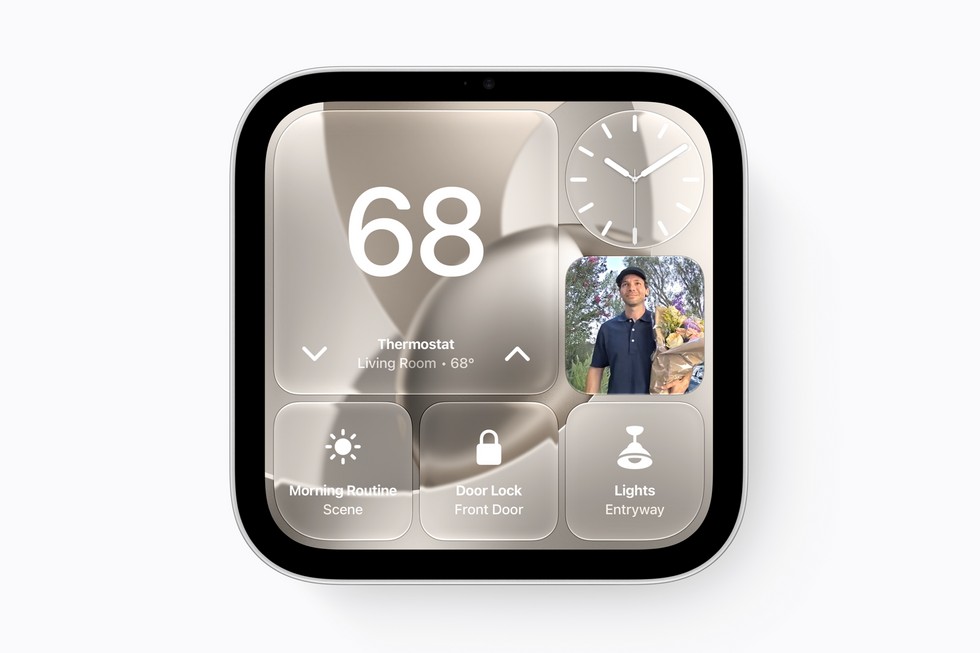
The Home app gives both versions of HomeView a permanent spot to check compatible doorbells and cameras, adjust lights and thermostats, or run scenes. HomeView also supports Matter and Thread. If you’re moving over from Google Nest or Amazon Echo, check your specific devices and the functions you rely on. A camera’s live view, recording and notifications are separate features, and the support you get can depend on the camera and how it’s integrated.
Apple offers faces geared toward home controls and camera feeds. That’s where the wall-mounted version starts to make sense to me. Put it near the entry and you have a consistent place to see who’s at the door, check the lock or turn lights off on the way out. The tabletop version makes more sense for my kitchen because I can move it around the counter and adjust the angle as I work.
FaceTime, music and the 7-inch display
Apple lists a 7-inch Liquid Retina display with True Tone and a brightness range of 0.3 to 500 nits. At the bright end it’s built for an indoor space with daylight. At the dim end I can see the attraction for a bedside clock, where even a little extra light can be annoying. In my setup video, the display looked crisp and was one of the first things I noticed when I put it next to my iPhone for scale.
The 12-megapixel camera supports Center Stage to keep people framed as they move during a FaceTime call, and there’s a four-microphone array for calls and Siri. A family call while you’re making dinner makes a good case for a fixed screen with its own camera. I’d want a longer test of call quality, particularly with an extractor fan or dishwasher running, before judging it against another display.
Apple lists Apple Music, podcasts and other media apps, plus AirPlay for pairing with compatible speakers across rooms. The tabletop HomeView has speakers in the display and adds a woofer and passive radiators in the base. If music is a big part of why you want one, that hardware difference is worth considering when you choose between the two models.

Canadian and U.S. pricing and which model I’d choose
Apple lists both versions at $429 CAD. The tabletop model comes in silver, starlight, rose pink and space grey. The wall-mounted version comes in silver or space grey and requires a separately sold mount. Apple lists Schneider Home’s USB-C Wall Connector at $79.95 CAD and AC Wired mount from $109.95 CAD. The PoE Wired option is slated for early 2027 at $179.95 CAD. With the USB-C mount, the wall setup starts at $508.95 CAD before tax.
In the United States, Apple lists both HomeView models at $299 USD. The Schneider Home USB-C Wall Connector starts at $59.95 USD and the AC Wired mount starts at $79.95 USD. The PoE Wired mount is slated for early 2027 at $129.95 USD. With the USB-C mount, the wall-mounted setup starts at $358.95 USD before tax. See Apple’s U.S. pricing announcement.
I’d start with the tabletop model if you’re still figuring out where a smart display will earn its space. If the goal is a permanent control panel, pick the wall location and work out the power setup before buying. The two models have the same starting price, but placement and mounting costs can make the choice fairly straightforward.
My first impressions
The three things that stood out in my hands-on time were the compact hardware, the easy iPhone pairing and how naturally a recipe fits on the kitchen counter. At $429 CAD ($299 USD), I’d want HomeView to do several jobs in the course of a week. If my household were already using Apple Home accessories, FaceTime and Apple Music, I could see it doing that. If I were shopping mainly for timers and weather, I’d have a harder time justifying the price.
I’ve used a Nest display in this same room, so the next test for me is whether HomeView becomes the screen I actually turn to when I’m cooking, checking the door or calling family. So far, the setup was easy enough that I spent more time deciding which face to use than getting it onto my Apple Home. Snoopy has the lead.
Apple HomeView technical specifications · Apple Canada launch details